
How We Built Our Slack Agent
Feb 27, 2026 | by Thibault Le Ouay Ducasse | [engineering]

How We Built Our Slack Agent
It's 2 AM. Your API is returning 500s. You're in a Slack thread with your team, looking at logs, sharing stack traces, trying to figure out what's going on. The last thing you want to do is switch to a dashboard, find the right status page, fill out a form, and publish a status report.
We know switching tools during an incident is a DX-killer. We wanted to be where our users already are — in Slack, in the thread, in the conversation. So we built a Slack agent.
@openstatus in a thread, describe what's happening, approve the draft, done. Your status page is updated without ever leaving Slack.
No Slash Commands
The only slash command I remember is the gif one — me, 2026
We decided not to include any slash commands, because in 2026 they don't make any sense. LLMs have gotten really good at understanding intent from natural language.
Compare these two:
/openstatus create --title "API Outage" --status investigating --page 1 --message "We are investigating elevated 500 error rates on our REST API."
vs.
@OpenStatus our API is returning 500s, can you create an incident?
Same result. One requires you to remember flags and IDs. The other is just talking to your team.
The agent understands context from the conversation. Say "we found the root cause" and it knows to set the status to identified. Say "it's fixed" and it drafts a resolution. You don't need to think about the status page schema — the agent handles that.
How It Works
Here's what a full incident lifecycle looks like in Slack:
1. Create an incident
Someone @mentions the bot in a channel or thread:
@openstatus our API is returning 500 errors for about 10% of requests. Can you create an incident on the status page?
The agent reads the message, looks up your status pages and components, and drafts a status report. Instead of publishing it directly, it posts a confirmation card:
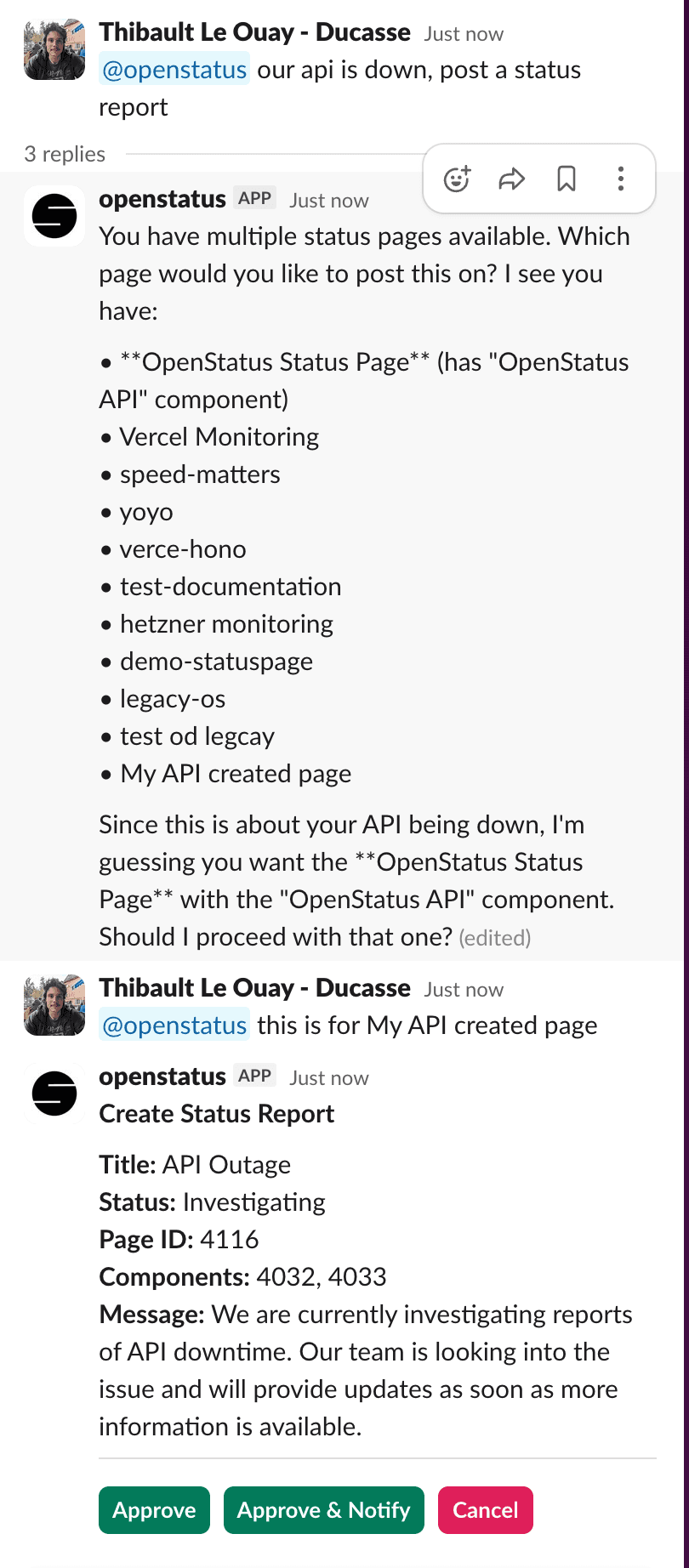
The card shows the drafted title, status, target page, and message — so you can review before anything goes public.
You get three options:
- Approve — publishes the status report.
- Approve & Notify — publishes and sends a notification to all your subscribers (email, SMS, etc.).
- Cancel — discards the draft.
2. Post an update
30 minutes later, you've identified the root cause. In the same thread:
@openstatus we found the cause — it's a connection pool exhaustion on the primary database. We're scaling up the pool now.
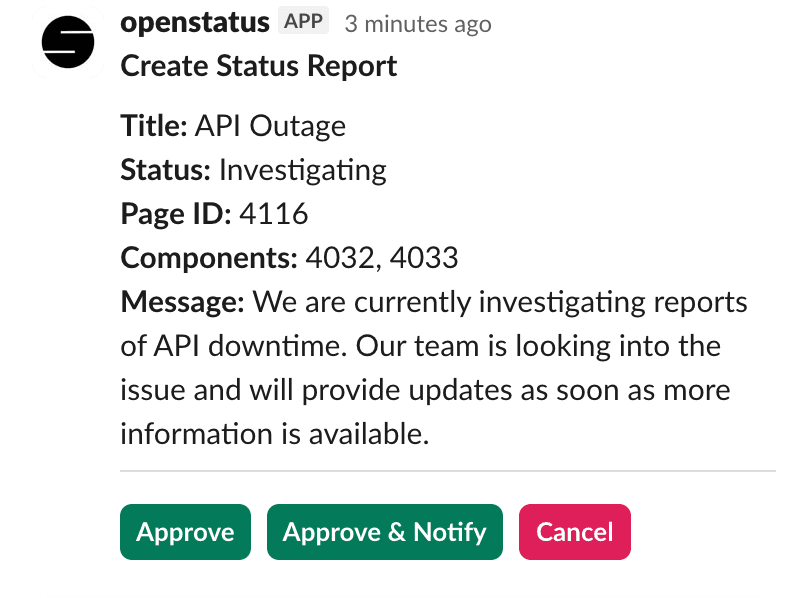
The agent drafts an update with status identified and a professional message for the status page. Same confirmation flow — review, approve, done.
3. Resolve
Once the fix is deployed:
@openstatus it's fixed, we deployed a patch to increase the connection pool size.
The agent drafts a resolution. Approve it and your status page shows the incident as resolved. If you choose "Approve & Notify", your subscribers get the all-clear.
The entire incident — from creation to resolution — happened in a single Slack thread. No tab switching, no forms, no context loss.
The Tech Behind It
Hono + Slack Events API
We integrated the Slack bot directly into our existing Hono server. No separate process, no Bolt framework. It's just a few new routes:
POST /slack/events— receives messages and mentions from Slack.POST /slack/interactions— receives button clicks (approve, cancel).GET /slack/install— kicks off the OAuth install flow.GET /slack/oauth/callback— completes the OAuth handshake.
Every incoming POST is verified with Slack's HMAC-SHA256 signature. We wrote a Hono middleware for that — it checks the x-slack-signature header against the request body and a shared signing secret, and rejects anything older than 5 minutes.
The AI Agent
We use the Vercel AI SDK with Claude Sonnet. The agent has 6 tools:
Read tools (execute immediately):
listStatusPages— returns all status pages and their components for the workspace.listStatusReports— returns active (or all) reports with their latest update.
Mutation tools (require human confirmation):
createStatusReportaddStatusReportUpdateupdateStatusReportresolveStatusReport
Here's the key design decision: mutation tools don't actually mutate anything. They return { needsConfirmation: true, params } and the handler shows the confirmation card in Slack.
export function createCreateStatusReportTool() {
  return tool({
    description: "Create a new status report...",
    inputSchema: z.object({
      title: z.string(),
      status: z.enum(["investigating", "identified", "monitoring", "resolved"]),
      message: z.string(),
      pageId: z.number(),
    }),
    execute: async (input) => {
      return { needsConfirmation: true as const, params: input };
    },
  });
}
The actual database writes only happen when the user clicks "Approve" in Slack. This means the AI can never publish something without explicit human approval.
Thread-Aware Context
When the bot is mentioned in a thread, it reads up to 100 replies and converts them into a conversation history for the LLM. So when you say "can you resolve it?" in a thread that already has an incident, the agent knows which report you're talking about.
If you refine your request in the same thread (say you change the wording before approving), the pending action is replaced — you don't get duplicate confirmation cards piling up.
Human-in-the-Loop Confirmation
We store pending actions in Redis with a 5-minute TTL. When you click a button:
- The handler does an atomic
getdelon the Redis key — this means if you double-click or two people click at the same time, only one execution goes through. - It checks that the person clicking is the same person who initiated the action. Anyone else gets an ephemeral "Only the person who initiated this action can approve or cancel it."
- If approved, it runs the database transaction and updates the Slack message with a confirmation link to the status page.
Building for Slack: The DX Pain Points
When building a Slack bot you can choose between Socket mode and HTTP mode.
Maybe it's a skill issue, but we went with HTTP mode because we wanted to integrate it into our existing Hono server without requiring a separate process. The tradeoff: you need a public URL for Slack to deliver events to, which means setting up ngrok (or similar) to tunnel requests to your local machine during development.
The Slack developer UI is also clunky — configuring event subscriptions, OAuth scopes, and interactivity URLs across multiple tabs is not a great experience.
A couple of things we learned the hard way:
Respond fast, process later. Slack expects a response within 3 seconds. If you don't respond in time, Slack retries the event — and now you're processing the same incident twice. We respond 200 OK immediately and process the event asynchronously in the background.
Deduplicate events. Even with fast responses, Slack sometimes sends the same event multiple times. We keep an in-memory map of processed event IDs (with a 5-minute expiry) and skip any duplicates. Simple, but saves you from a lot of head-scratching.
What's Next
Right now the agent handles status reports — creating, updating, and resolving incidents. But we're planning to expand it:
- Reminders — set reminders to post update about your on-going incidents.
- Incident summaries — ask the bot for a quick overview of all active incidents.
We want the Slack agent to become the primary interface for teams who live in Slack.
Try It
The Slack agent is available today on paid plans. Install it from your dashboard under Settings > Integrations, @mention it in any channel, and manage your next incident without leaving Slack.
Install the Slack agent from your openstatus dashboard and manage your next incident without leaving Slack.