
How to Migrate from Atlassian Statuspage to openstatus
Mar 27, 2026 | by openstatus | [alternative]
Atlassian Statuspage has been a reliable choice for communicating service status for years. But as teams grow, the pricing gets steep, monitoring remains a separate concern, and customization options stay limited. Openstatus offers a modern, open-source alternative with built-in synthetic monitoring, unlimited team members, and a one-click importer that brings your existing data along.
This guide walks through migrating your Statuspage account to openstatus, including what gets imported, what does not, and what to do after the migration is complete.
For background on why we built the importer, see the announcement blog post.
What Gets Imported
Openstatus reads from the Statuspage REST API and maps your data as follows.
Field Mapping
| Statuspage Resource | Statuspage Field | openstatus Resource | openstatus Field | Notes |
|---|---|---|---|---|
| Page | name | Status Page | title | |
| Page | page_description | Status Page | description | |
| Page | subdomain | Status Page | slug | |
| Page | domain | Status Page | customDomain | |
| Component | name | Component | name | Imported as static type |
| Component | description | Component | description | |
| Component | position | Component | order | |
| Component Group | name | Component Group | name | Child components linked automatically |
| Incident | name | Status Report | title | |
| Incident | incident_updates | Status Report Updates | message, status, date | All updates preserved in chronological order |
| Incident | postmortem_body | Status Report Update | Appended to last update | Appended with a separator and "Postmortem" heading |
| Incident | components | Status Report | Component links | Linked by matching source component IDs |
| Scheduled Incident | name | Maintenance | title | Incidents with scheduled_for become maintenances |
| Scheduled Incident | scheduled_for | Maintenance | from | |
| Scheduled Incident | scheduled_until | Maintenance | to | Falls back to scheduled_for if absent |
| Scheduled Incident | incident_updates | Maintenance | message | All update bodies concatenated |
| Subscriber | email | Subscriber | email | Only email mode subscribers are imported |
| Subscriber | components | Subscriber | Component scope | Per-component subscriptions preserved |
Incident Status Mapping
| Statuspage Status | openstatus Status |
|---|---|
investigating | investigating |
identified | identified |
monitoring | monitoring |
resolved | resolved |
scheduled | investigating |
in_progress | investigating |
verifying | monitoring |
completed | resolved |
Caveats
- Components are imported as "static" type. Statuspage does not expose monitor configurations via its API. After import, you can connect an openstatus monitor to any component.
- Component groups are preserved. Groups and their child component relationships are maintained during import.
- Incidents include all updates. Every
incident_updateis imported chronologically. If a postmortem body exists, it is appended to the last update with a Markdown separator. - Scheduled incidents become maintenances. Any incident with a
scheduled_fortimestamp is imported as a maintenance rather than a status report. - Only email subscribers are imported. SMS, Slack, and webhook subscribers are skipped. The importer displays a warning with the count of skipped subscribers during preview.
- Monitors are not imported. The Statuspage API does not expose monitor configurations.
- Multi-page accounts require a Page ID. If your Statuspage account has multiple pages, provide the Page ID to target a specific page. You can find it in the Statuspage URL or via the API.
Step-by-Step Walkthrough
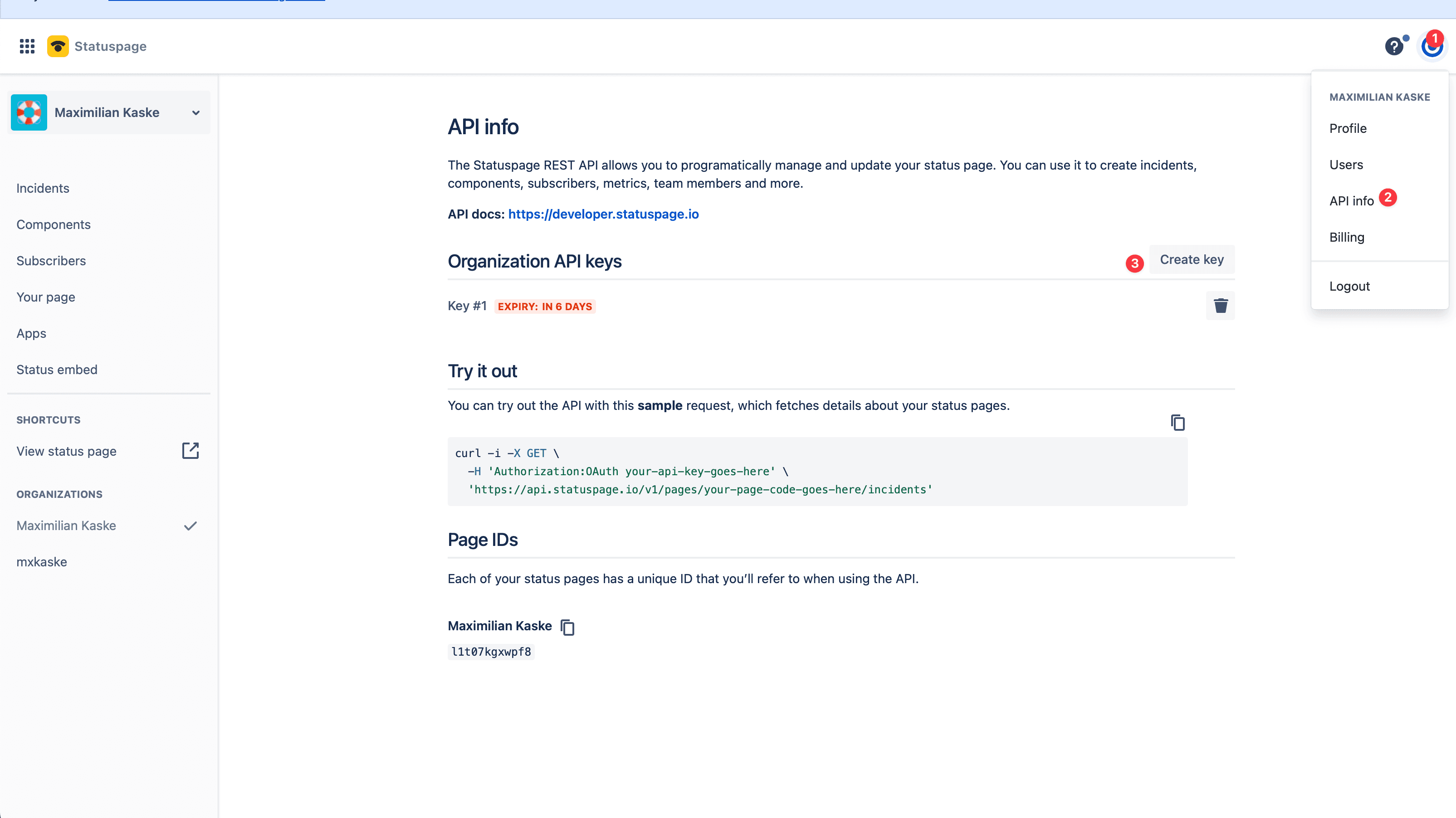
1. Get Your Statuspage API Key
Log in to your Atlassian Statuspage account. Navigate to Manage Account and then API. Copy your API key.
If your account has multiple pages, also note the Page ID for the page you want to import. You can find it in the URL when viewing the page in the Statuspage dashboard (e.g., manage.statuspage.io/pages/<page_id>).
2. Open the Import Tool
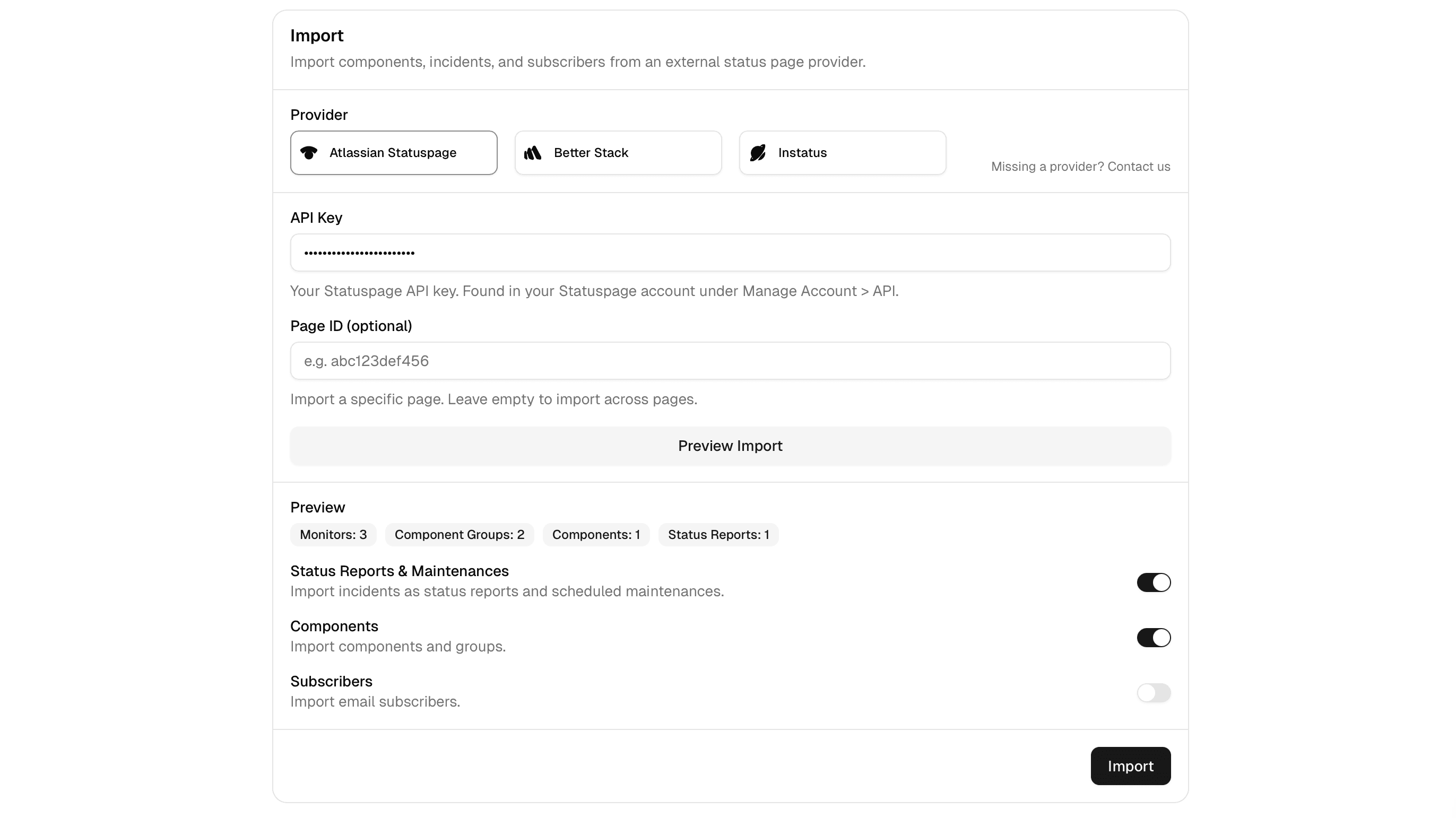
In your openstatus dashboard, navigate to Status Pages and select the target status page (or create one first). Open the Components tab and scroll down to the Import section.
Select Atlassian Statuspage as the provider. Paste your API key. If applicable, enter your Page ID.
Click Preview. The importer fetches your data from the Statuspage API and displays a summary:
- Number of components and component groups
- Number of incidents and maintenances
- Number of email subscribers
- Warnings for any skipped resources (e.g., SMS or Slack subscribers)
Review the summary before proceeding. Toggle which resource types you want to import: components, incidents, maintenances, and subscribers. Click Import to start.
After the Import
Once your data is in openstatus, there are a few steps to finish the migration.
Connect Monitors to Components
Imported components have no monitor attached because Statuspage does not expose monitor configurations. For each component that should reflect live uptime data:
- Create an openstatus monitor (HTTP, TCP, or other supported check type).
- Link the monitor to the component in the component settings.
Verify Subscriber Data
Imported email subscribers are marked as confirmed. Verify that your subscriber list is complete by comparing counts between Statuspage and openstatus.
Update DNS for Your Custom Domain
If you use a custom domain for your status page, update your DNS records to point to openstatus instead of Statuspage. Refer to the openstatus documentation on custom domains for the required DNS configuration.
Decommission Statuspage
After verifying that everything is working correctly on openstatus, you can cancel your Atlassian Statuspage subscription. Consider keeping the old page in read-only mode for a transition period so that any bookmarked URLs still resolve.
Video walkthrough
Watch a full migration from Atlassian Statuspage to openstatus in real time.
Further Reading
- Blog: Import from Statuspage, Betterstack, and Instatus
- Docs: How to Import a Status Page
- Top Five Atlassian Statuspage Alternatives
Frequently asked questions
How long does it take to migrate from Statuspage to openstatus?
The import itself takes under 2 minutes. You'll need your Statuspage API key and optionally your Page ID if you have multiple pages.
Will I lose any data when migrating from Statuspage?
No. Openstatus imports your components, component groups, incidents (with all updates), maintenances, and email subscribers. SMS and Slack subscribers are not supported — you'll see a warning during preview.
Can I preview the import before committing?
Yes. The importer shows a full preview of what will be imported — including counts per resource type and any warnings — before you confirm.
Does openstatus import my Statuspage monitors?
Atlassian Statuspage doesn't expose monitor configurations via their API, so components are imported as static components. You can connect openstatus monitors to them after import.
Can I run the import multiple times?
Components, component groups, and subscribers are deduplicated by name — the importer skips existing resources. However, incidents and maintenances are always created as new entries, so re-running the import will produce duplicates for those.