
Configure Your Status Page
| Prerequisites | openstatus account, a status page (see Create a status page), at least one monitor added to it |
In this guide, you'll customise your status page's appearance and behaviour. You'll explore different display options, themes, and configuration settings to create a status page that matches your brand and communication style.
Status page customisation
openstatus offers enhanced status page customisation with multiple themes and display options. Explore available themes at themes.openstatus.dev.
Get started
Open your status page in the dashboard. Configuration is split across two places:
- The Components page holds Components Configuration — how trackers render each component's data.
- The status page Settings hold General, Appearance, Custom Theme, Links, Locales, Page Access, Custom Domain, and the Danger Zone.
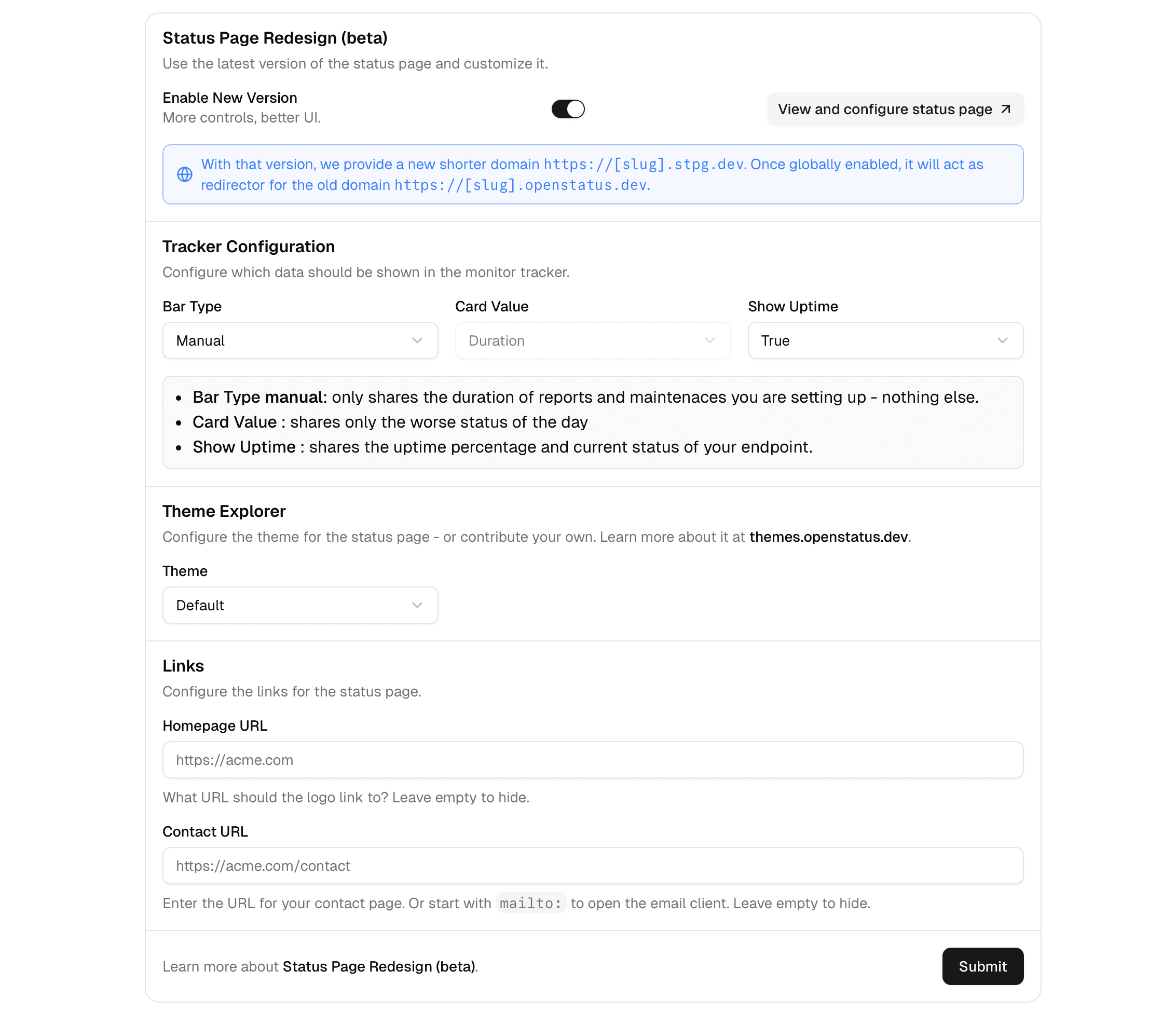
View and configure status page
You can preview changes before committing to them. Click View and configure status page and you'll be forwarded to your status page with a floating button in the bottom right. Once you're done, click Dashboard to be forwarded back to your page, where you'll be asked to save the config before continuing.
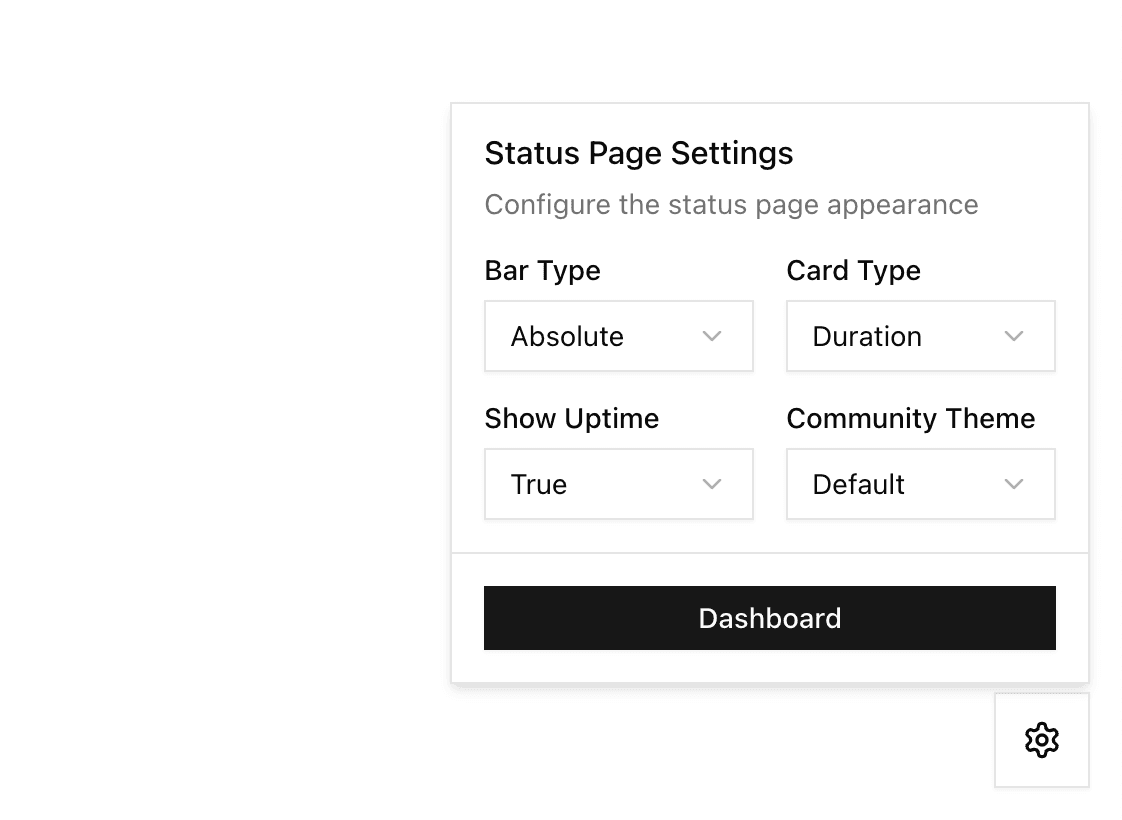
1. Components configuration
The Components Configuration card, on the Components page, controls two related things: how each component's bars and cards display its data, and the page-wide uptime and history view.
Bars and cards
These settings only apply to monitor components — the fields are disabled until your status page has at least one.
Status source — where the bars get their status from:
- Monitor checks — bars show your monitor's real results for each day.
- Reports only — bars only change when you post a status report or maintenance. Monitor results are hidden.
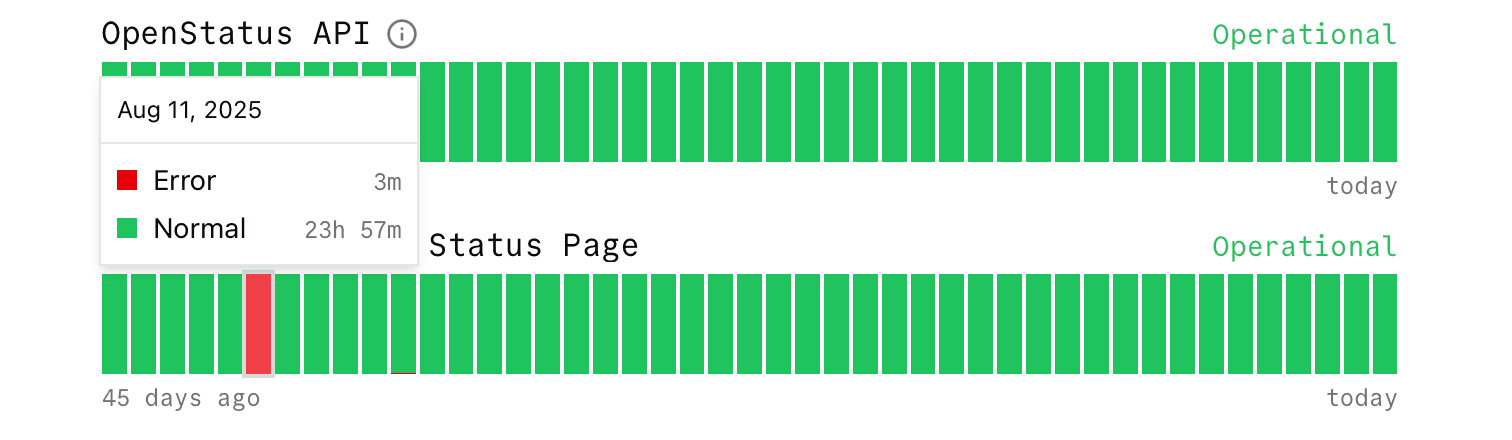
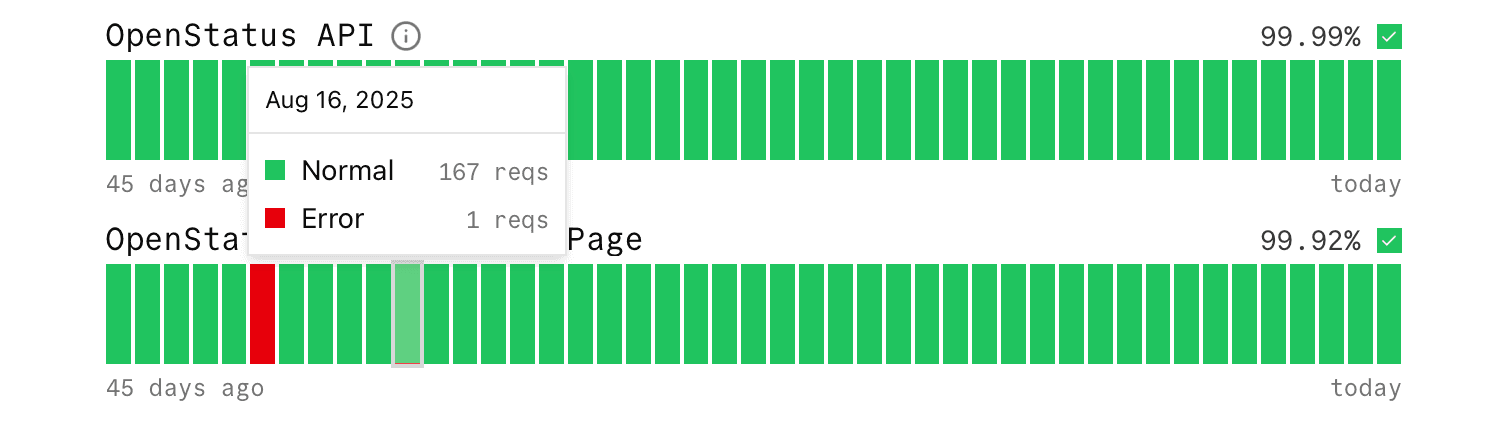
Card shows — only configurable if the status source is Monitor checks. Choose between Time per status, which shows how long the monitor was operational, degraded, down or in maintenance, or Number of checks, which shows how many checks succeeded, degraded or failed. With Reports only, the card shows only the worst status of the day.
Uptime and history
Show uptime — with Monitor checks, uptime is calculated from either the time per status or the number of checks, depending on what you've chosen for Card shows (including incidents). With Reports only, it's calculated only from the duration of your status reports.
History — the number of days of history rendered on the bars. Choose between 30 or 45 days (defaults to 45).
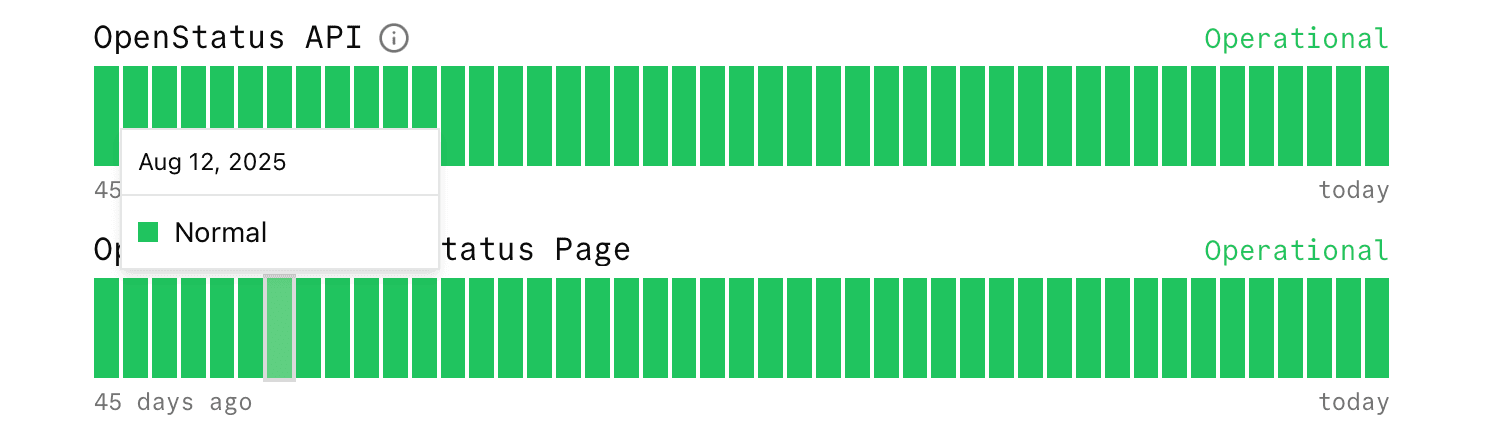
A few examples to understand it:
Example of Monitor checks with Time per status and showing uptime
Example of Monitor checks with Number of checks and hiding uptime
Example of Reports only and hiding uptime
2. Appearance
Pick a theme under Settings > Appearance, in the Style field. The shipped set is:
default(openstatus)default-roundedsupabasegithub-contrastdraculapassboltgruvboxtomorrowprobo
Visit themes.openstatus.dev to see the list of supported themes. You can also create and contribute your own.
If you use AI agents, install the openstatus-theme skill with npx skills add openstatushq/skills --skill openstatus-theme for guided help through palette design, accessibility checks, file scaffolding, and PR submission.
3. Links
Your status page header navigation:
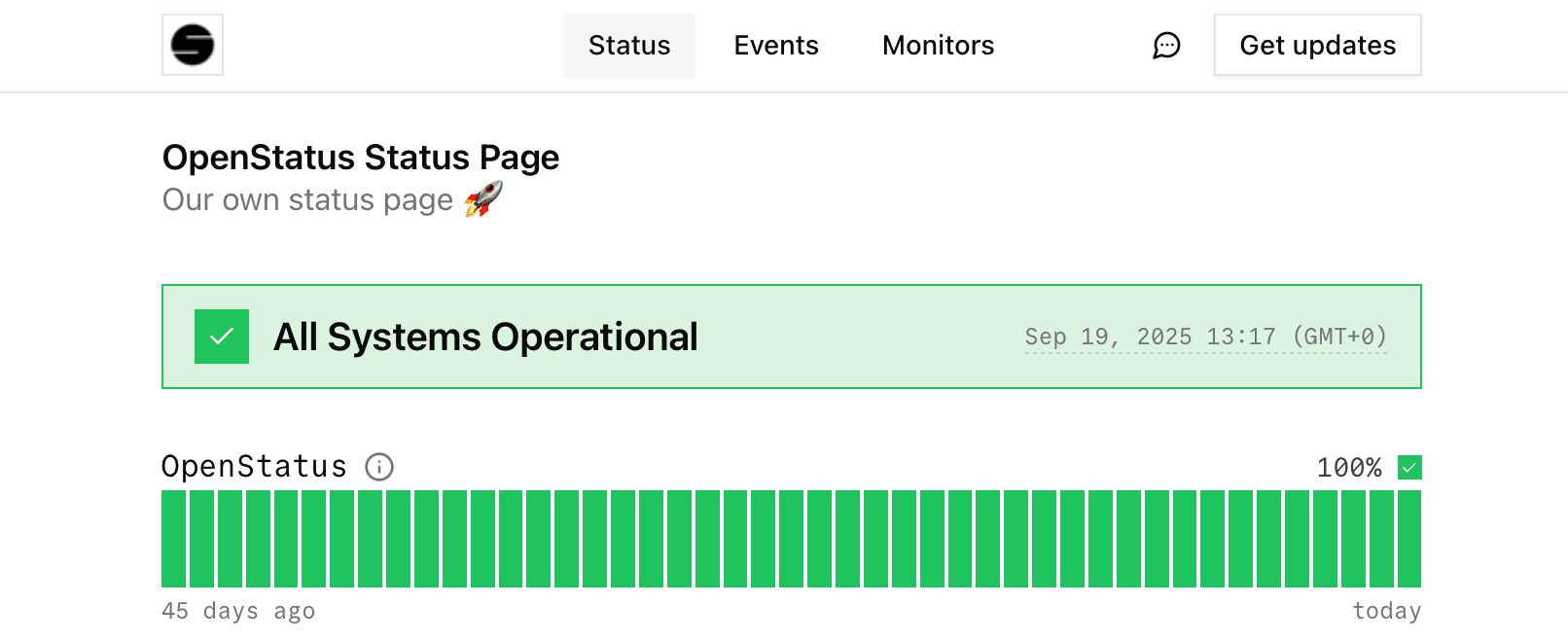
Homepage URL — your logo will link to your own website.
Contact URL — if filled out, users will see a Message icon they can click to reach a contact page. This can also be an email client by starting the input with mailto: (e.g. mailto:support@openstatus.dev).
4. Locales
You can offer your status page in multiple languages. In the Locales section of your status page settings:
- Choose a default locale — the fallback language for visitors.
- Enable the locale switcher to let visitors pick their preferred language.
- Select which languages to make available.
See How to translate your status page for the supported list and how to contribute new translations.
We are continuously adding new features. Feel free to let us know what's missing!
What you've accomplished
- Enabled and configured the new status page design
- Customised status tracker display options
- Explored and applied theme settings
- Added navigation links to your status page
- Configured locales and the language switcher
- Previewed changes before making them live
What's next
- Building trust with status pages — learn effective incident communication.
- Status subscribers — let users subscribe to updates.
Learn more
- Status page reference — complete configuration options.
- Uptime calculation values — how uptime percentages work.