
How to Self-Host openstatus
Problem
You want to run openstatus on your own infrastructure instead of using the hosted service. This gives you full control over your data, customization options, and the ability to monitor internal services not accessible from the public internet.
Solution
openstatus provides a Docker Compose setup that makes self-hosting straightforward. This guide walks you through deploying all necessary services and configuring your self-hosted instance. On Kubernetes, use the Helm chart instead — see Running on Kubernetes.
Only want the status page? If you already have monitoring elsewhere and just need somewhere to publish incidents, the lightweight status-page-only setup runs four services instead of the full stack — no Tinybird, no probes, no API server.
Prerequisites
- Docker and Docker Compose installed
- Basic understanding of Docker and containerization
- Command line experience
- Git installed
- The Tinybird CLI (
tb) — required for the analytics setup in Part 2
Two different things are called "private location"
This trips up almost everyone, so read this before you start. There are two separate components, with two confusingly similar image names:
| Image | What it is | Where it runs | |
|---|---|---|---|
| Probe | ghcr.io/openstatushq/private-location:latest | Runs the actual checks against your endpoints and ships results to the ingest server | Anywhere you want to monitor from — a VPS, a Raspberry Pi, inside your VPC. Not part of docker-compose.yaml. |
| Ingest server | ghcr.io/openstatushq/openstatus-private-location:latest | Receives results from probes, writes them to Tinybird, and forwards status changes to the workflows app | On your openstatus host, as the private-location service in docker-compose.yaml (published on port 8081) |
The probe's OPENSTATUS_INGEST_URL points at the ingest server — that is port 8081, not 3001. Port 3001 is the API server (apps/server) and has nothing to do with ingest.
Caution
We know the naming is bad. The prefixed image (openstatus-private-location) is the server; the unprefixed one (private-location) is the probe.
Known limitations
Self-hosting openstatus currently has these constraints:
- It only works with private locations. You have to deploy our probes to the cloud provider of your choice.
- The AI assistant's docs knowledge base (the
search_docs/get_doc_pageandsearch_content/get_content_pagetools) queries the publichttps://www.openstatus.devsite by default. SetOPENSTATUS_WEB_BASE_URLif you mirror the marketing site and want the assistant to read your own copy. - IP Restriction is not secure outside Vercel. The IP restriction feature for status pages relies on the
X-Forwarded-Forheader, which Vercel overwrites with the verified client IP. When self-hosting behind a different reverse proxy, clients can spoof this header to bypass IP restrictions. If you self-host and use IP restriction, ensure your reverse proxy strips and rewritesX-Forwarded-Forwith the real client IP before forwarding to openstatus.
Step-by-step guide
This guide is divided into three parts: launching the services, setting up analytics, and configuring the application through the UI.
Part 1: initial setup and service launch
-
Clone the repository
Get the latest version of openstatus:
git clone https://github.com/openstatushq/openstatus cd openstatus -
Configure your environment
Copy the example environment file. This file will hold all your configuration variables.
cp .env.docker.example .env.dockerOpen
.env.dockerin a text editor. Four values are marked[REQUIRED]and must be set:AUTH_SECRET,RESEND_API_KEY(magic-link login won't work without it),SELF_HOST, andNEXT_PUBLIC_URL. For a complete setup, review the file for other variables like OAuth providers or email services.Two values matter for the rest of this guide — set them now:
# Point the apps at the local Tinybird container instead of Tinybird Cloud. # If you leave this empty, the dashboard queries api.tinybird.co and every # chart fails with "the pipe ... does not exist". TINYBIRD_URL=http://tinybird-local:7181 # Shared secret the ingest server uses to authenticate to the workflows app. # Any random string, but it must be set on both. CRON_SECRET=some-random-stringYou'll fill in the Tinybird tokens in Part 2, once the container is running.
If you plan to connect MCP clients (Claude, Cursor, ChatGPT) with OAuth, also set the two origins the flow redirects through. With
NODE_ENV=productionthey default to openstatus Cloud, which would send your users toapp.openstatus.devto approve a connection:# Public origin of the API server (authorization server and /mcp resource). OAUTH_ISSUER=http://localhost:3001 # Public origin of the dashboard, which serves the consent screen. DASHBOARD_URL=http://localhost:3002Use your real hostnames once the stack sits behind a reverse proxy. The MCP server reference has the details.
-
Build and start services
Use Docker Compose to build and run all openstatus services in the background.
export DOCKER_BUILDKIT=1 docker compose up -dYou can check the status of the services with
docker compose ps. It might take a few minutes for all services to be healthy.Database migrations run automatically: the
db-migrateone-shot container applies them before the apps start, and every other service waits on it. It's idempotent, so it's safe to leave in place on eachdocker compose up. If it fails, see Troubleshooting.Tip
Prefer prebuilt images over building from source? Use
docker compose -f docker-compose.github-packages.yaml up -d, which pulls fromghcr.io/openstatushq/*instead.
Part 2: analytics setup
openstatus stores every check result in Tinybird. Without a working Tinybird setup you can create monitors and probes, but the dashboard will show no data.
This is the step most self-hosters get wrong, so follow it exactly.
-
Deploy the Tinybird project
Deploy the datasources, pipes, and endpoints into the local Tinybird container started by Compose:
cd packages/tinybird tb --local deploy -
Confirm the deployment is live
A deployment that stays in
Stagingis not queryable — the pipes exist but every request 404s. Check it:tb --local deployment lsYou want
Statusto readLive:------------------------------------- | ID | Status | Created at | ------------------------------------- | 1 | Live | 2026-07-25 18:20:52 | -------------------------------------If it says
Staging, promote it:tb --local deployment promote -
Get the Tinybird token
You do not need to log in to Tinybird Cloud. Against a local container the CLI runs in a temporary local workspace and prints its token:
tb --local infoCopy the value of
tokenfrom the Tinybird Local section.To grab it in one line:
tb --local info | grep '^token:' | awk '{print $2}'Don't use curl http://localhost:7181/tokens
That endpoint works without auth and looks like the right answer, but it returns tokens for a different workspace than the one
tb --local deploydeploys into. Ingest will appear to succeed — Tinybird silently auto-creates a datasource from the first event — while every dashboard query fails withThe pipe 'endpoint__http_metrics_1d__v1' does not exist. Usetb --local info.Likewise,
tb --local openasks you to sign in to Tinybird Cloud and is not usable on a headless server. You don't need it. -
Add the token to your environment
The Node apps and the Go ingest server read different variable names for the same token. Both are in
.env.docker— fill them in with the same value:# Read by the dashboard, status page, server, and workflows apps TINY_BIRD_API_KEY="your-tinybird-local-token" # Read by the private-location ingest server (Go) TINYBIRD_TOKEN="your-tinybird-local-token"Caution
Setting only
TINY_BIRD_API_KEYis the most common self-hosting mistake. The ingest server never reads it, so every check it receives is rejected by Tinybird withunexpected status code: 403and no data ever reaches your dashboard.Restart so the new values are picked up:
cd ../.. docker compose up -d -
Verify analytics end to end
Confirm the token can query a deployed pipe:
TOKEN=$(tb --local info | grep '^token:' | awk '{print $2}') curl -s -o /dev/null -w '%{http_code}\n' \ -H "Authorization: Bearer $TOKEN" \ "http://localhost:7181/v0/pipes/endpoint__http_metrics_1d__v1.json?monitorId=1"A
200means Part 2 is done. A404means the deployment isn't promoted or you're using the wrong token — go back to steps 5 and 6.
Part 3: application configuration
Now that the services are running, you can access the dashboard and perform the final setup steps.
- Dashboard:
http://localhost:3002 - Status Pages:
http://localhost:3003
-
Create a workspace and set limits
- Navigate to the dashboard at
http://localhost:3002. - Sign up and create a new workspace.
- Because this is a self-hosted instance, you need to manually set the feature limits for your workspace directly in the database.
Every key you leave out falls back to its free-plan default, not to "unlimited" — a partial payload silently caps the workspace at 3 page components, 6 regions, and no OTLP export, screenshots, response logs, custom theme, or translations. The block below sets every key the current
limitsSchema(packages/db/src/schema/plan/schema.ts) defines, so nothing falls through. Change theWHERE id = 1at the end if your workspace has a different ID.curl -sS -X POST http://localhost:8080/ -H "Content-Type: application/json" -d @- <<'JSON' {"statements":["UPDATE workspace SET limits = '{\"monitors\":100,\"synthetic-checks\":100000,\"periodicity\":[\"30s\",\"1m\",\"5m\",\"10m\",\"30m\",\"1h\"],\"multi-region\":true,\"max-regions\":28,\"data-retention\":\"24 months\",\"regions\":[\"ams\",\"arn\",\"bom\",\"cdg\",\"dfw\",\"ewr\",\"fra\",\"gru\",\"iad\",\"jnb\",\"lax\",\"lhr\",\"nrt\",\"ord\",\"sjc\",\"sin\",\"syd\",\"yyz\",\"koyeb_fra\",\"koyeb_was\",\"koyeb_sin\",\"koyeb_tyo\",\"koyeb_par\",\"koyeb_sfo\",\"railway_europe-west4-drams3a\",\"railway_us-east4-eqdc4a\",\"railway_asia-southeast1-eqsg3a\",\"railway_us-west2\"],\"private-locations\":true,\"screenshots\":true,\"response-logs\":true,\"otel\":true,\"status-pages\":20,\"page-components\":500,\"maintenance\":true,\"monitor-values-visibility\":true,\"uptime-history\":true,\"status-subscribers\":true,\"custom-domain\":true,\"i18n\":true,\"password-protection\":true,\"email-domain-protection\":true,\"ip-restriction\":true,\"white-label\":true,\"no-index\":true,\"custom-theme\":true,\"notifications\":true,\"pagerduty\":true,\"opsgenie\":true,\"grafana-oncall\":true,\"whatsapp\":true,\"sms\":true,\"sms-limit\":1000,\"notification-channels\":50,\"members\":\"Unlimited\",\"audit-log\":true,\"sso\":true,\"slack-agent\":true}' WHERE id = 1"]} JSONYou can find your workspace ID by inspecting the database with a command like
curl -X POST http://localhost:8080/ -H "Content-Type: application/json" -d '{"statements":["SELECT id, name FROM workspace"]}'.If you want to unlock the paid features, you need to upgrade your workspace inside the database. The following command assumes that you want to change the payment plan for the workspace with the ID of 1, and that you want to change it to a "Pro" instance indefinitely.
curl -sS -X POST "http://localhost:8080/" \ -H "Content-Type: application/json" \ -d "{\"statements\":[ \"UPDATE workspace SET plan='team', paid_until=strftime('%s','now') + 315360000, ends_at=NULL WHERE id=1;\", \"SELECT id, plan, paid_until, ends_at FROM workspace WHERE id=1;\" ]}" - Navigate to the dashboard at
-
Deploy a probe
The self-hosted version relies on private locations to perform checks. The ingest server is already running from Part 1 — what you deploy here is the probe.
- In the dashboard, navigate to Settings > Private Locations and create a new one.
- Copy the generated key.
- Run the probe wherever you want to check from:
docker run -d --name openstatus-probe \ -e OPENSTATUS_KEY=<your-key> \ -e OPENSTATUS_INGEST_URL=http://<your-server-ip-or-domain>:8081 \ ghcr.io/openstatushq/private-location:latestThe two environment variables are:
OPENSTATUS_KEY— the key you copied from the dashboard. Some older docs call thisOPENSTATUS_TOKEN; that name is not read by the probe, which exits on startup withOPENSTATUS_KEY is requiredif the variable is unset.OPENSTATUS_INGEST_URL— the URL of your ingest server, i.e. theprivate-locationservice on port 8081. If you don't set it, the probe defaults to openstatus Cloud (https://openstatus-private-location.fly.dev) and your self-hosted instance will never see a check.
If you run the probe on the same Docker network as the rest of the stack, use the internal address instead —
http://private-location:8080.A healthy probe logs like this:
Launching openstatus private location checker 2026/07/25 09:50:50 Starting job for monitor 1 (https://google.com) 2026/07/25 09:50:50 Monitor check for 1 (https://google.com) ingested with status "success" (code 200)Tip
The probe refreshes its monitor list every 10 minutes. After creating or editing a monitor, give it up to 10 minutes — or restart the probe — before assuming something is broken.
- For a detailed guide on deploying a private location, see Deploy Private Locations on Cloudflare Containers.
-
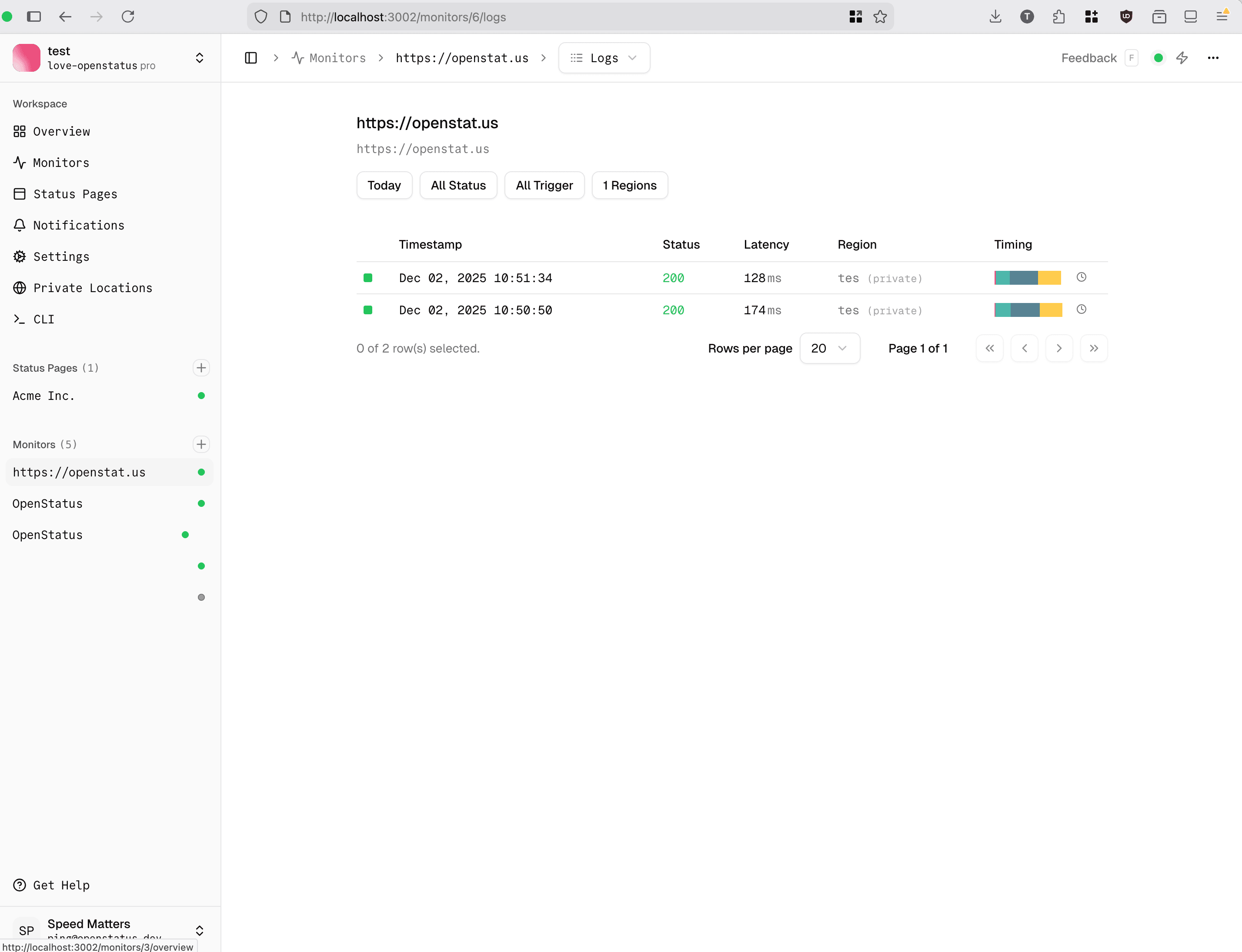
Create monitors
You're all set! You can now create monitors in the dashboard. They will be checked by the private location you deployed.
Part 4: scheduled tasks
Self-hosted deployments need external cron scheduling for background tasks. Without these, critical features like private location health monitoring won't work.
-
Set up the private location health cron
The
private-location-healthcron job monitors your private location probes and sends email notifications when they go offline or recover.What it does:
- Checks if private location agents have reported recently (within the last 15 minutes)
- Transitions status from
active→errorwhen an agent stops reporting - Transitions status from
error→activewhen an agent resumes reporting - Sends email notifications to workspace members on status transitions
- Creates audit log entries for status changes
Without this cron, private location status will never update from "error" to "active", and recovery notifications will not be sent.
Setup with system cron (Linux/Unix):
Add this to your crontab (
crontab -e):# Run private location health check every 5 minutes */5 * * * * curl -sS -H "Authorization: YOUR_CRON_SECRET" http://localhost:3000/cron/private-location-healthReplace
YOUR_CRON_SECRETwith the value you set in.env.docker(step 2), and adjust the URL if your workflows service runs on a different host or port.Setup with Docker cron container:
Create a
cron/directory in your openstatus folder:mkdir cronCreate
cron/Dockerfile:FROM alpine:latest RUN apk add --no-cache curl COPY crontab /etc/crontabs/root CMD ["crond", "-f", "-l", "2"]Create
cron/crontab:*/5 * * * * curl -sS -H "Authorization: ${CRON_SECRET}" http://workflows:3000/cron/private-location-healthAdd to your
docker-compose.yaml:services: # ... existing services ... cron: build: ./cron container_name: openstatus-cron env_file: - .env.docker networks: - openstatus restart: unless-stoppedThen restart your stack:
docker compose up -dVerification:
Check the workflows logs to confirm the cron is running:
docker compose logs workflows | grep "private-location-health"You should see entries every 5 minutes like:
private-location-health complete: checked=2 toError=0 toActive=0Caution
If you skip this step, your private locations will show "error" status permanently even when actively reporting.
Running on Kubernetes
The Helm chart runs the same services as docker-compose.github-packages.yaml and automates the steps that don't need the dashboard:
- Database migrations run before
workflowsstarts, like thedb-migratecontainer. - A post-install Job does Part 2 (steps 4–7): it deploys the Tinybird project and stores the token as both
TINY_BIRD_API_KEYandTINYBIRD_TOKEN. - A CronJob calls
/cron/private-location-healthevery 5 minutes (Part 4). AUTH_SECRETandCRON_SECRETare generated on first install and kept on upgrade.
git clone https://github.com/openstatushq/openstatus
cd openstatus
helm install openstatus ./charts/openstatus -n openstatus --create-namespace \
  --set urls.dashboard=https://openstatus.example.com \
  --set urls.server=https://api.openstatus.example.com
The chart creates ClusterIP Services only, so expose the dashboard and status page with your own Ingress or Gateway. Workspace limits (step 9) and the probe (step 10) are still manual; the chart README has the commands.
Configuring the AI assistant (optional)
openstatus ships an in-dashboard AI assistant. It is off by default when self-hosting — the chat endpoint returns 503 "Chat is not configured" until you point it at a model provider. Configure one of the two options below in your .env.docker (root) — or apps/dashboard/.env for a manual setup — then restart the dashboard.
Option 1: OpenAI-compatible endpoint (bring your own model)
Use any OpenAI-compatible API — NVIDIA NIM, vLLM, Ollama, OpenRouter, Neon AI Gateway, LM Studio, or a private gateway. This is the recommended path for self-hosting: the model and key stay on your own infrastructure.
AI_BASE_URL=https://integrate.api.nvidia.com/v1
AI_API_KEY=nvapi-xxxxx
AI_MODEL=meta/llama-3.1-70b-instruct
AI_BASE_URL— the provider's OpenAI-compatible base URL (usually ends in/v1). Setting it enables this option.AI_API_KEY— optional. Leave empty for keyless local gateways such as Ollama.AI_MODEL— the model id to use. It must support tool / function calling — the assistant manages your monitors and status pages through tools, so a model without tool support cannot act.
A fully local, keyless setup with Ollama:
AI_BASE_URL=http://localhost:11434/v1
AI_MODEL=llama3.1
Example: Neon AI Gateway
Neon AI Gateway serves an OpenAI-compatible API, so it goes through the same three variables. Every Neon branch has its own gateway host, which the Neon console shows as NEON_AI_GATEWAY_BASE_URL next to a NEON_AI_GATEWAY_TOKEN credential. The host is bare, so add /v1 when you copy it, and give the credential the ai_gateway:invoke scope.
AI_BASE_URL=<NEON_AI_GATEWAY_BASE_URL>/v1
AI_API_KEY=<NEON_AI_GATEWAY_TOKEN>
AI_MODEL=gpt-5-mini
Any entry in the Neon model catalog that lists chat/completions among its endpoints works as AI_MODEL, and the gpt-5-mini above is one example rather than a default. Pick a model that supports tool calling. Neon does not record that per model, so check the flag on Models.dev first. This path has not been validated through a complete assistant workflow, so exercise a real monitor or status-page change before you depend on it.
Note
AI Gateway is in beta, requires a paid Neon plan, and runs only in AWS US East (Ohio) (aws-us-east-2).Option 2: Vercel AI Gateway
If you use the Vercel AI Gateway, set a single key. The model is chosen automatically (a smaller model for free workspaces, a stronger one for paid).
AI_GATEWAY_API_KEY=your-gateway-key
When both are configured, AI_BASE_URL takes priority over the gateway.
Service architecture
openstatus consists of multiple services running together:
| Service | Port | Purpose |
|---|---|---|
| db-migrate | — | One-shot database migrations; exits after applying |
| workflows | 3000 | Background jobs and scheduled tasks |
| server | 3001 | API backend (ConnectRPC + REST v1) |
| dashboard | 3002 | Admin interface for configuration |
| status-page | 3003 | Public status pages |
| private-location | 8081 | Ingest server — receives results from probes |
| libsql | 8080 | Database (HTTP) |
| libsql | 5001 | Database (gRPC) |
| tinybird-local | 7181 | Analytics and metrics |
The probe is not in this table — it runs outside the stack, wherever you want to check from, and talks to private-location on port 8081.
What you've accomplished
- Deployed openstatus on your own infrastructure
- Configured all required services
- Set up a private location for monitoring
- Created your first self-hosted monitor
Troubleshooting
Containers won't start — check Docker logs with docker compose logs [service-name].
Database migrations fail — inspect docker compose logs db-migrate. To re-run them by hand without installing anything on the host (the image's entrypoint is the migration itself):
docker run --rm -it \
  --network openstatus \
  --env-file .env.docker \
  -e DATABASE_URL=http://libsql:8080 \
  openstatus/db-migrate:latest
Or simply docker compose up -d db-migrate, since the step is idempotent.
Dashboard charts are empty and the log shows The pipe 'endpoint__http_metrics_1d__v1' does not exist — the dashboard is querying the wrong Tinybird workspace. Three causes, in order of likelihood:
TINYBIRD_URLis unset, so it's querying Tinybird Cloud. SetTINYBIRD_URL=http://tinybird-local:7181.- The token came from
curl http://localhost:7181/tokensinstead oftb --local info— wrong workspace. See step 6. - The deployment is still in
Staging. Runtb --local deployment promote.
Ingest server logs tinybird.success=false error.message="unexpected status code: 403" — TINYBIRD_TOKEN is missing or wrong. It is a separate variable from TINY_BIRD_API_KEY; both must be set to the same token. See step 7.
Ingest server logs failed to forward status update to workflows ... 401 — the CRON_SECRET the ingest server sends doesn't match the one the workflows app expects. Make sure CRON_SECRET is set in .env.docker and that both containers were restarted afterwards. If the ingest server runs outside the Compose network, also confirm WORKFLOWS_URL points at your own workflows app — unset, it defaults to openstatus Cloud, which will reject your secret.
Private location shows an error state in the dashboard but the probe logs look fine — a cron in the workflows app marks a location unhealthy when it hasn't reported recently. Confirm workflows is running and healthy (docker compose ps workflows), and that the ingest server can reach it.
Probe runs but nothing appears in the dashboard — check, in order:
OPENSTATUS_INGEST_URLpoints at port 8081 (the ingest server), not 3001.OPENSTATUS_KEYmatches the key shown in Settings > Private Locations.- The ingest server logs show
IngestHTTPrequests arriving —docker compose logs private-location. - Those log lines show
tinybird.success=true. If not, revisit step 7.
What's next
- Deploy a private probe on Cloudflare Containers — set up monitoring from multiple regions.
- Create your first monitor — start monitoring your services.
Learn more
- Docker Compose file — review the complete configuration.
- Helm chart — run the stack on Kubernetes.
- Private location reference — technical specifications.
- Join our Discord — get help from the community.