
Configure Your Status Page
What you'll learn
In this tutorial, you'll learn how to customize your status page's appearance and behavior. You'll explore different display options, themes, and configuration settings to create a status page that matches your brand and communication style.
Prerequisites
- An openstatus account
- A status page already created (see Create a Status Page)
- At least one monitor added to your status page
What you'll build
By the end of this tutorial, you'll have:
- A customized status page with your preferred theme
- Configured status trackers displaying data your way
- Links to important resources
- Multi-language support with a locale switcher
- Preview and live configuration experience
Status Page Customization
openstatus offers enhanced status page customization with multiple themes and display options.
Explore available themes: https://themes.openstatus.dev
Get started
Go to the Status Page Redesign section in your status page settings and toggle Enable New Version. Once enabled, you'll see three subsections:
- Tracker Configuration
- Theme Explorer
- Links
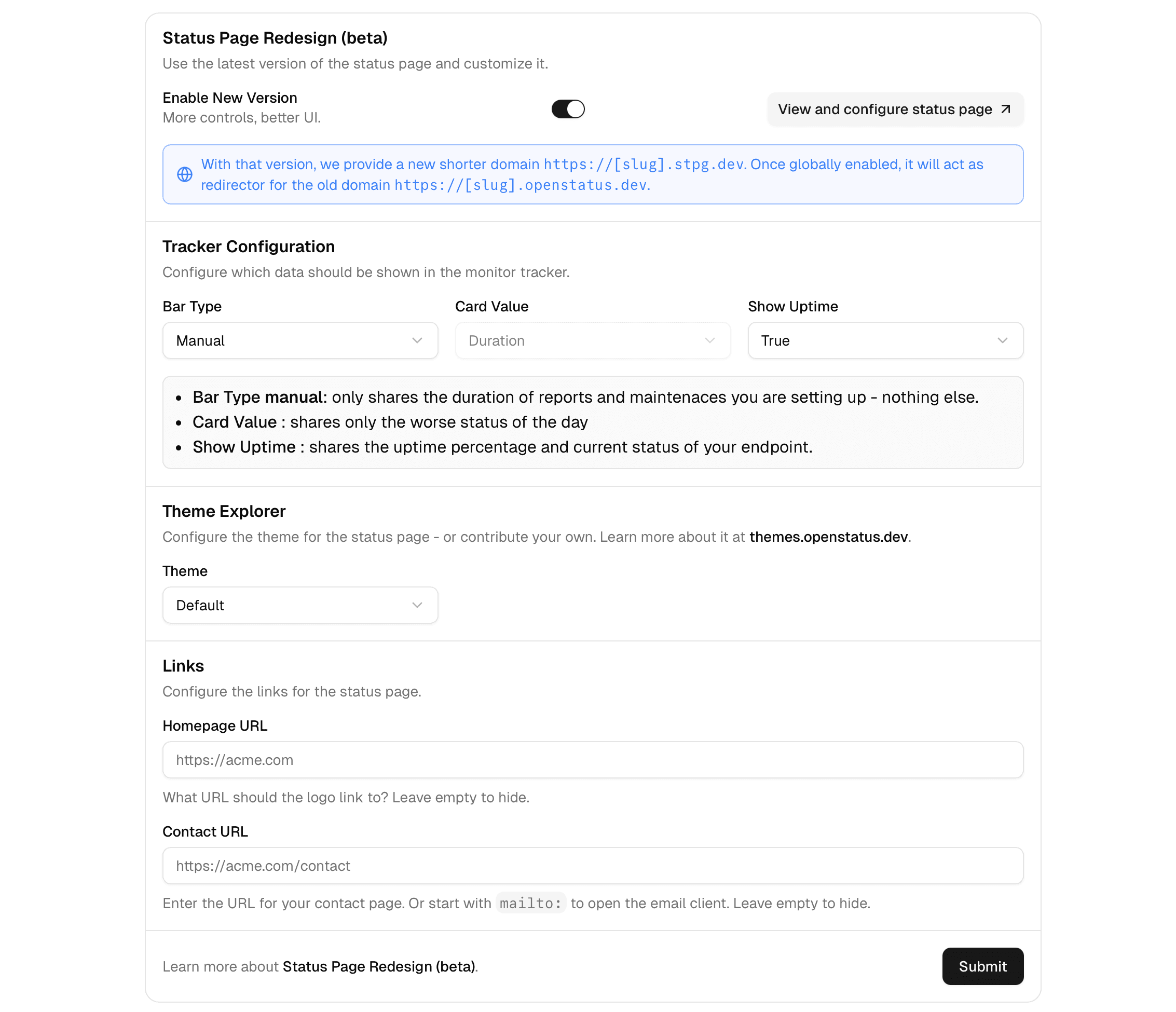
View and configure status page
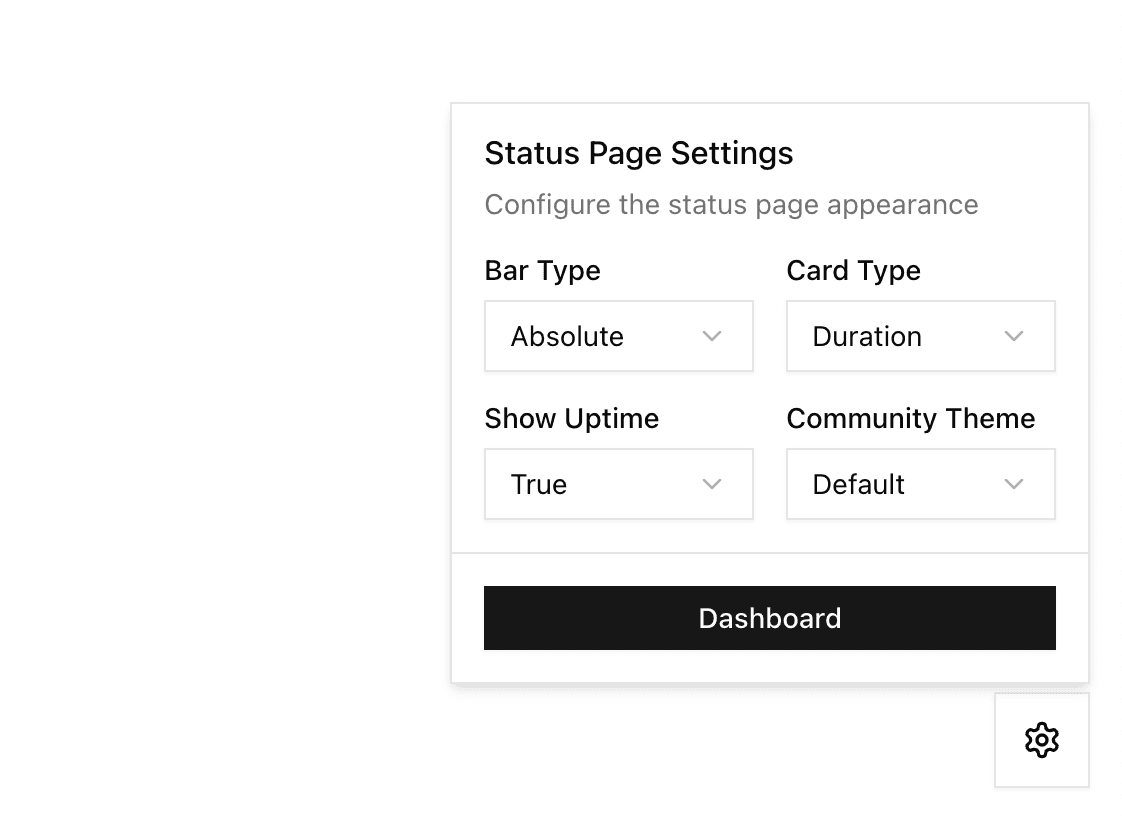
Before choosing to enable the new page, we provide you with a way to check the configuration first. Click on the View and configure status page and you'll get forwarded to your status page and a bottom right floating button will appear. Once you're done, click on the Dashboard and you'll be forwarded to your page where you get asked to save the config before continuing.
Note
Once enabled, the subdomain will have a rewrite to the new project. We are adding amaxAge: 600 request cookie to improve the page load. If you decide to deactivate the new version, it might take up to 10 minutes for the user to see the old page.1. Tracker Configuration
We have three new status tracker configurations to provide you with a maximum choice of displaying the collected data.
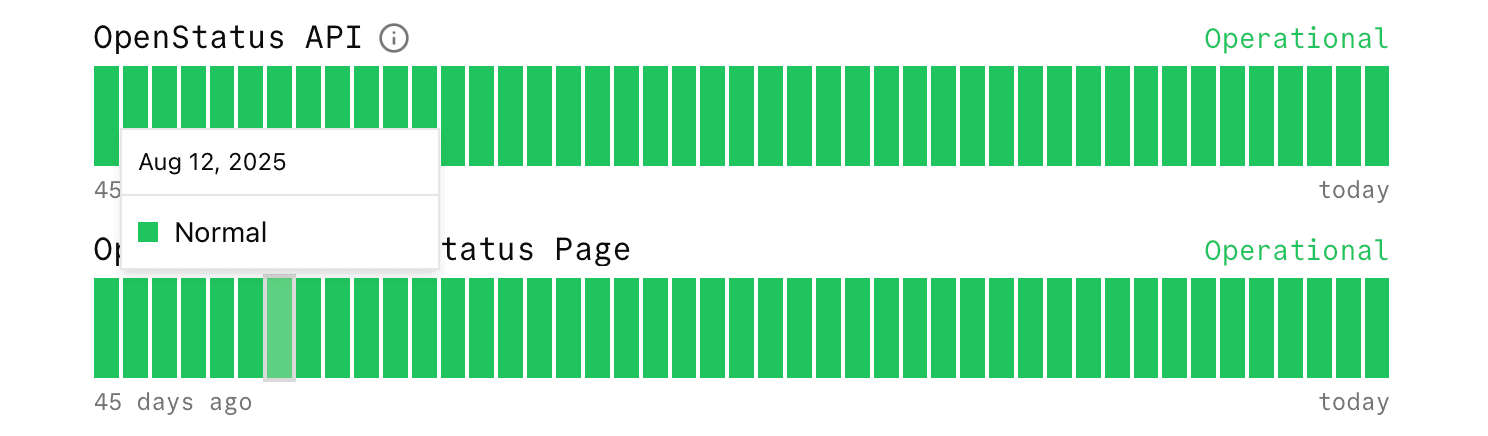
Bar Type: How every 'day' is displayed in for a status tracker. Either absolute or manual.
Card Type: The card type is only configurable if the bar type is absolute. You'll then be able to choose between duration, which will show the duration of "success", "error", "degraded" or "maintenance" reports or requests where we will share the number of request status itself. If manual bar type is chosen, we will only show the most significant status of the day.
Show Uptime: The uptime is calculated by either the duration of the different reports or the request values depending on what you've chosen for the absolute value (incl. incidents). If you've chosen manual, it only gets calculated by the duration of your status reports.
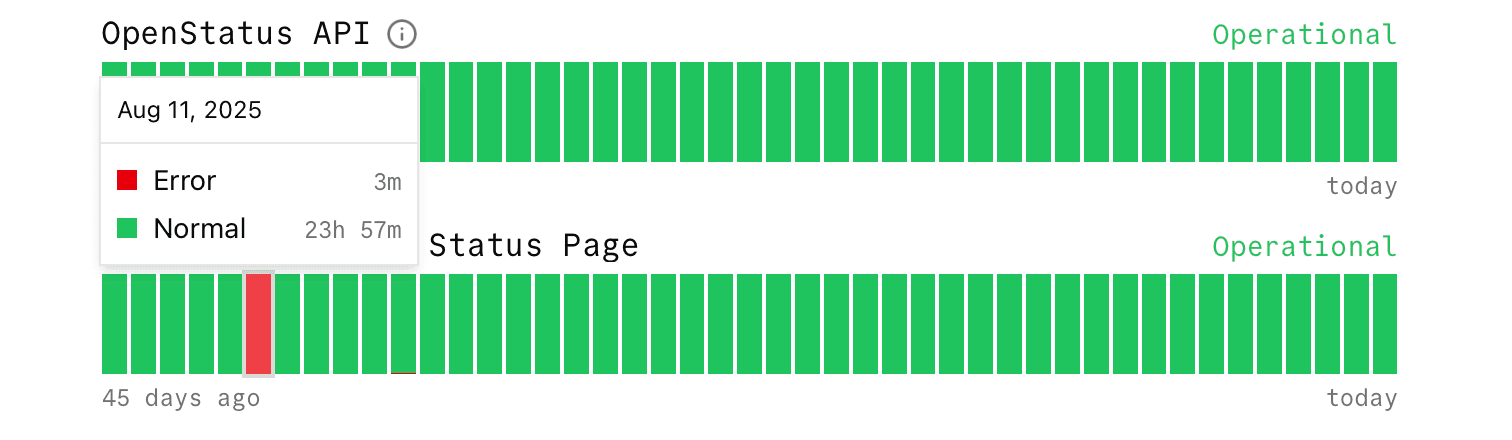
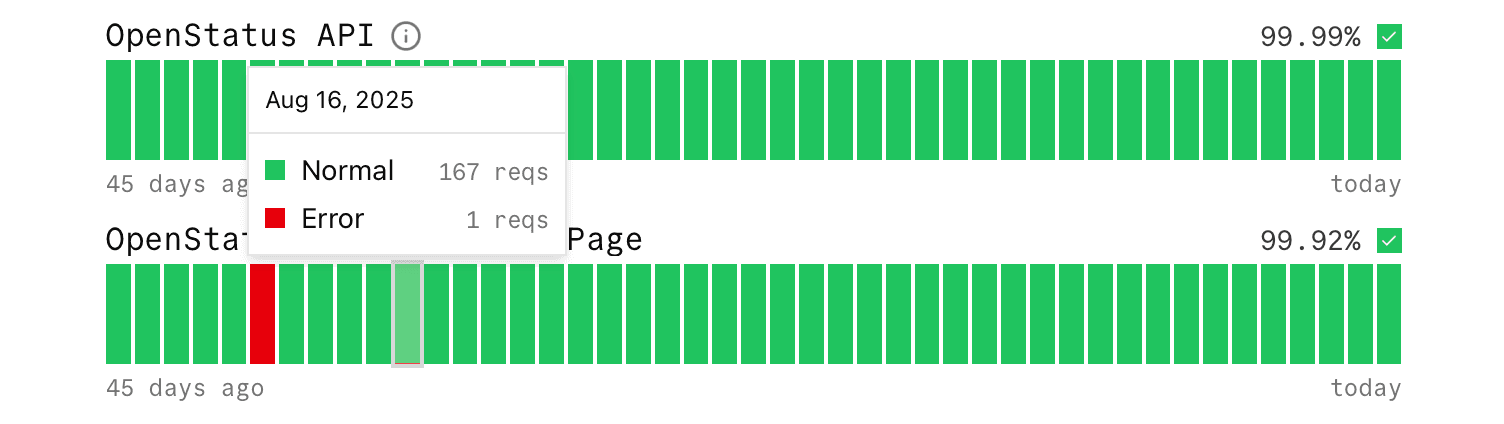
A few examples to understand it:
Example of absolute bar with duration card and showing uptime
Example of absolute bar with request card and hiding uptime
Example of manual bar with simple card and hiding uptime
2. Theme Explorer
You can choose between different themes. We start with the following three:
default(openstatus)supabasegithub-high-contrast
Visit themes.openstatus.dev to see the list of supported themes. If you want, you can contribute your own to the list.
If you use AI agents, install the openstatus-theme skill with npx skills add openstatushq/skills --skill openstatus-theme to get guided help through palette design, accessibility checks, file scaffolding, and PR submission.
3. Links
Let's have a closer look at your status page header navigation:
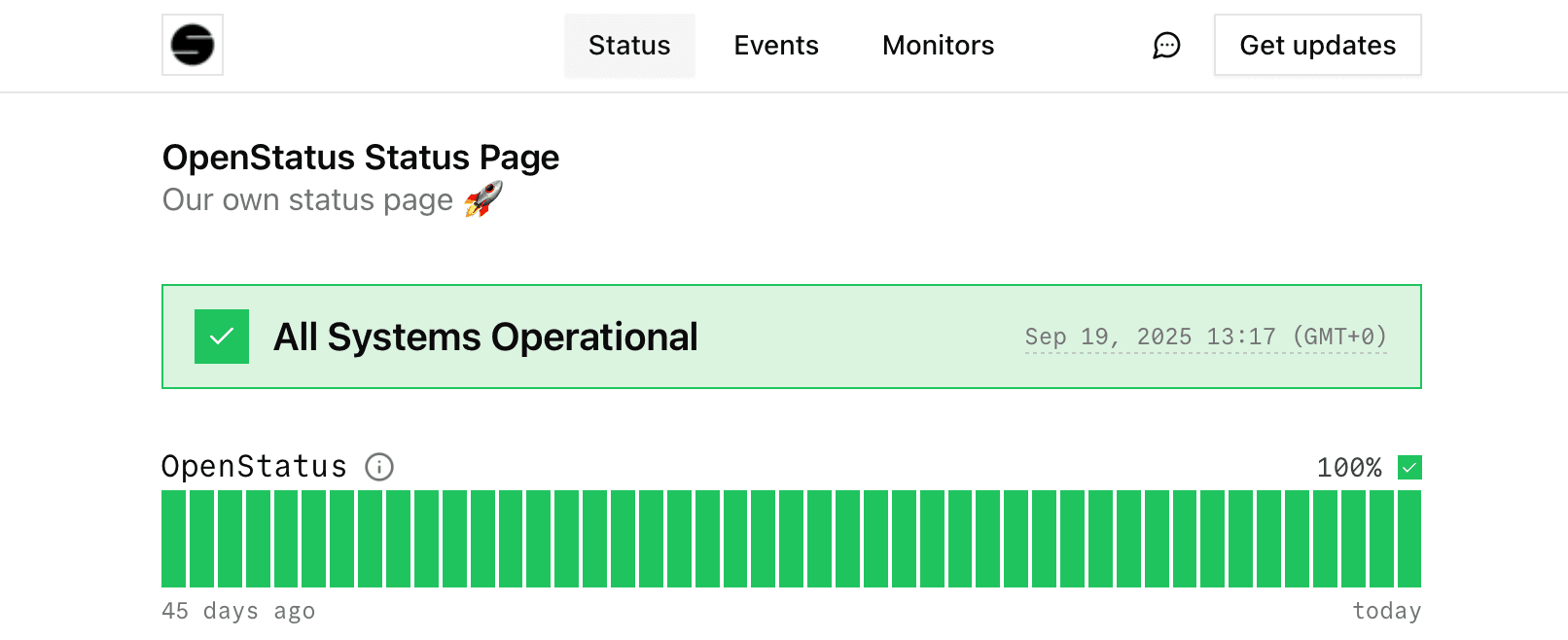
Homepage URL: Your logo will support linking to your own website.
Contact URL: If filled out, you will see a Message icon that users can click to forward them to a contact page. This can also be an email client by starting the input with mailto: (e.g. mailto:support@openstatus.dev).
4. Locales
You can offer your status page in multiple languages. In the Locales section of your status page settings:
- Choose a Default Locale — the fallback language for visitors.
- Enable the Locale Switcher to let visitors pick their preferred language.
- Select which languages to make available.
Currently supported: English, French, and German. See How to translate your status page for details on contributing new translations.
We are continuously adding new features. Feel free to let us know what's missing!
What you've accomplished
Excellent work! You've successfully:
- ✅ Enabled and configured the new status page design
- ✅ Customized status tracker display options
- ✅ Explored and applied theme settings
- ✅ Added navigation links to your status page
- ✅ Configured locales and the language switcher
- ✅ Previewed changes before making them live
What's next?
Now that your status page is configured, you can:
- Building Trust with Status Pages - Learn effective incident communication
- Add Status Subscribers - Let users subscribe to updates
Learn more
- Status Page Reference - Complete configuration options
- Uptime Calculation Values - How uptime percentages work