
Create an Uptime Monitor in 5 Minutes
What you'll learn
In this tutorial, you'll learn how to create your first monitor an automated watchdog for your services. A monitor periodically checks your endpoints to ensure they are available, performant, and returning the correct data. Think of it as a curl command that runs 24/7, providing continuous insights into the health of your application.
Prerequisites
- An openstatus account (free tier available at openstatus.dev)
- A URL endpoint to monitor (can be your own service or any public URL)
What you'll build
By the end of this tutorial, you'll have:
- A working uptime monitor checking your endpoint every minute
- Real-time metrics showing response time and status codes
- Understanding of how to customize HTTP requests for different scenarios
Get Started in 1 Minute
Let's get your first uptime check up and running.
1. Create the Monitor
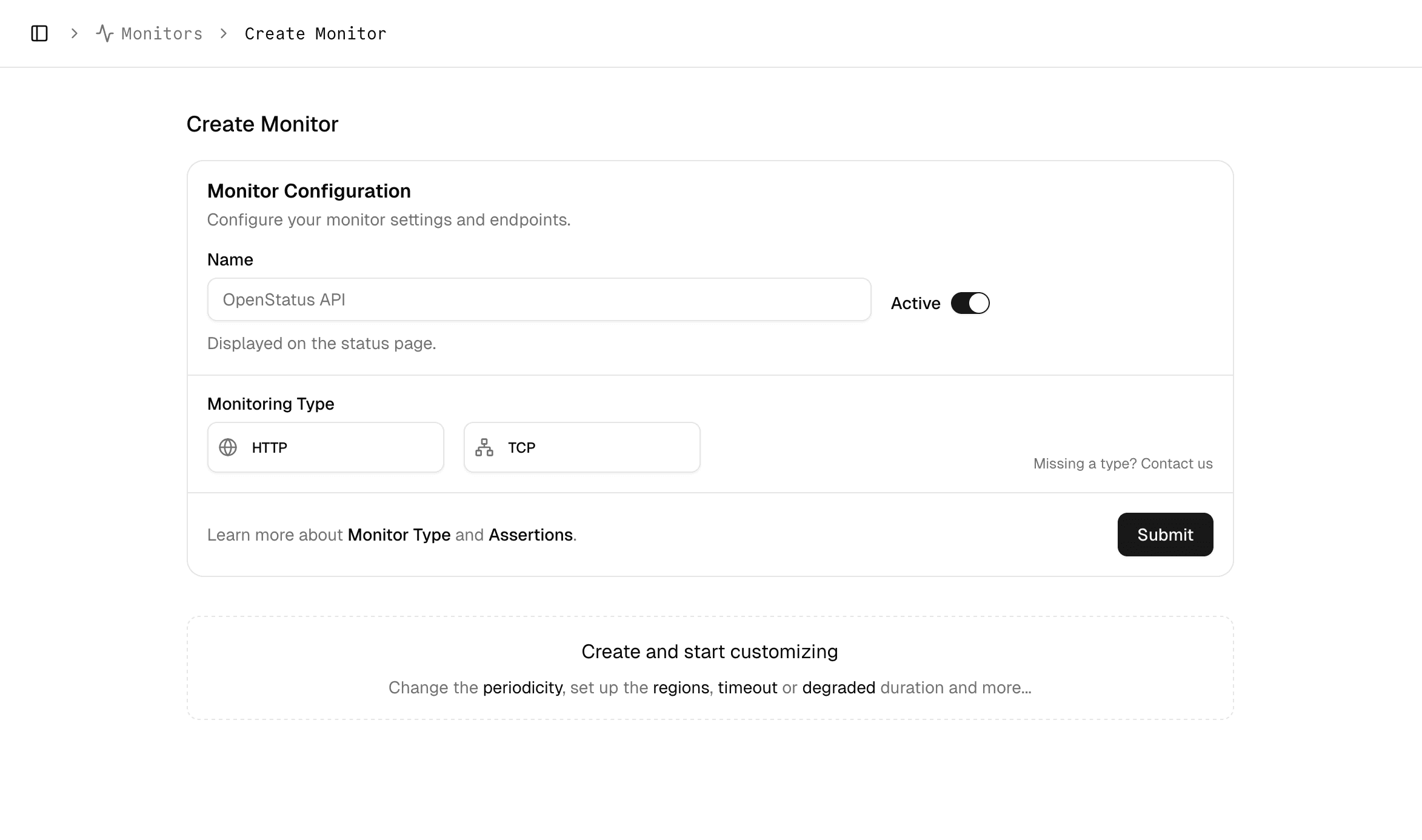
Navigate to the Monitors page from the sidebar and click the Create Monitor button. This will open a new configuration screen.
2. Configure the Basics
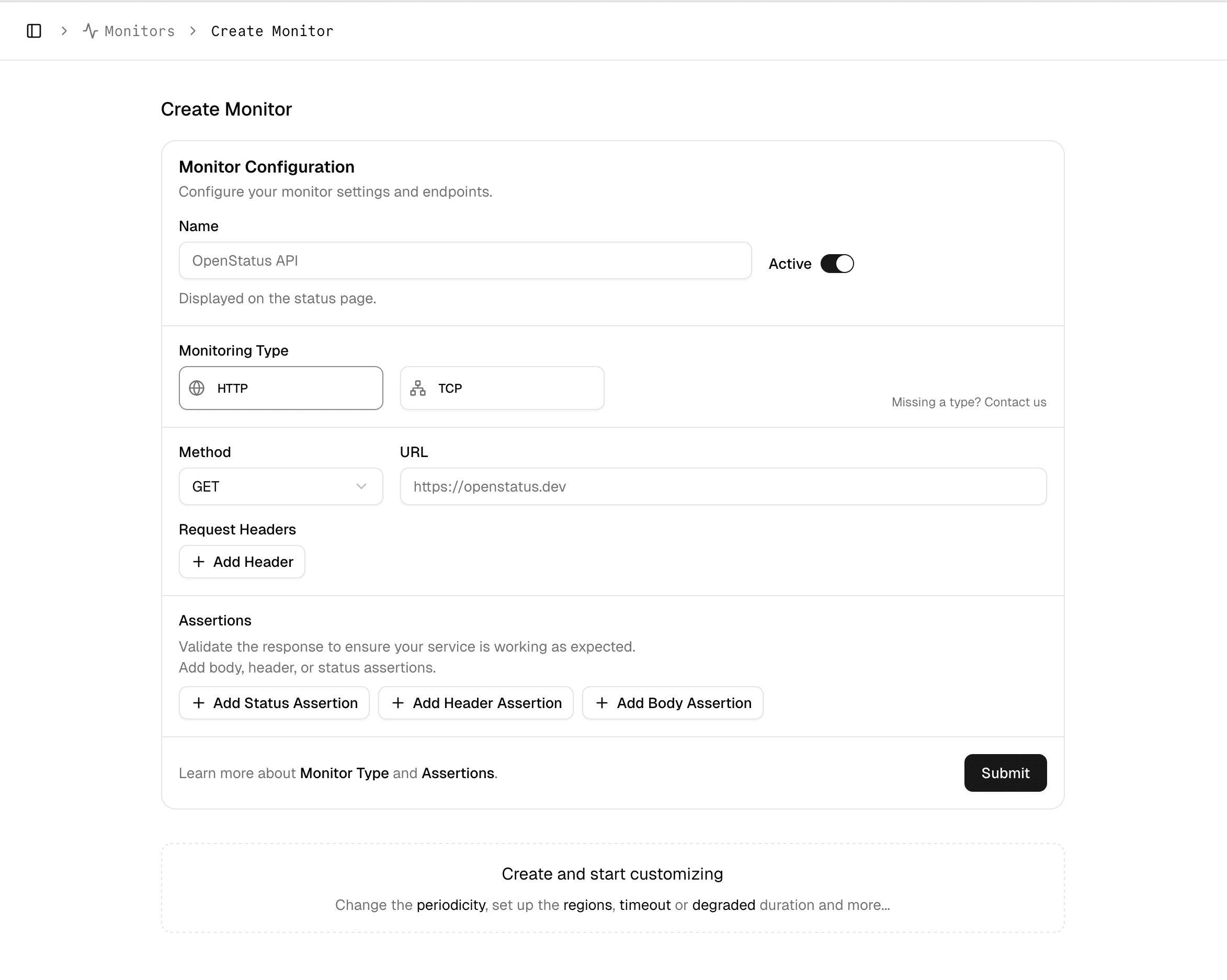
To get your monitor started, you only need to provide two essential pieces of information:
- Name: A clear, descriptive name for your monitor (e.g., "Production API Health Check" or "Homepage Uptime").
- URL: The full URL of the endpoint you want to test (e.g.,
https://openstat.us).
As soon as you enter the URL, our monitoring tool will automatically begin tracking key performance metrics for every check, including:
-
Response Time: The total time it takes for the request to complete.
-
Status Code: The HTTP status code returned by the server (e.g., 200, 404, 500).
-
Response Headers: A detailed view of the headers returned by the server.
-
Detailed Timing Metrics: A breakdown of the time spent on each phase of the request (DNS lookup, TCP connection, TLS handshake, etc.)
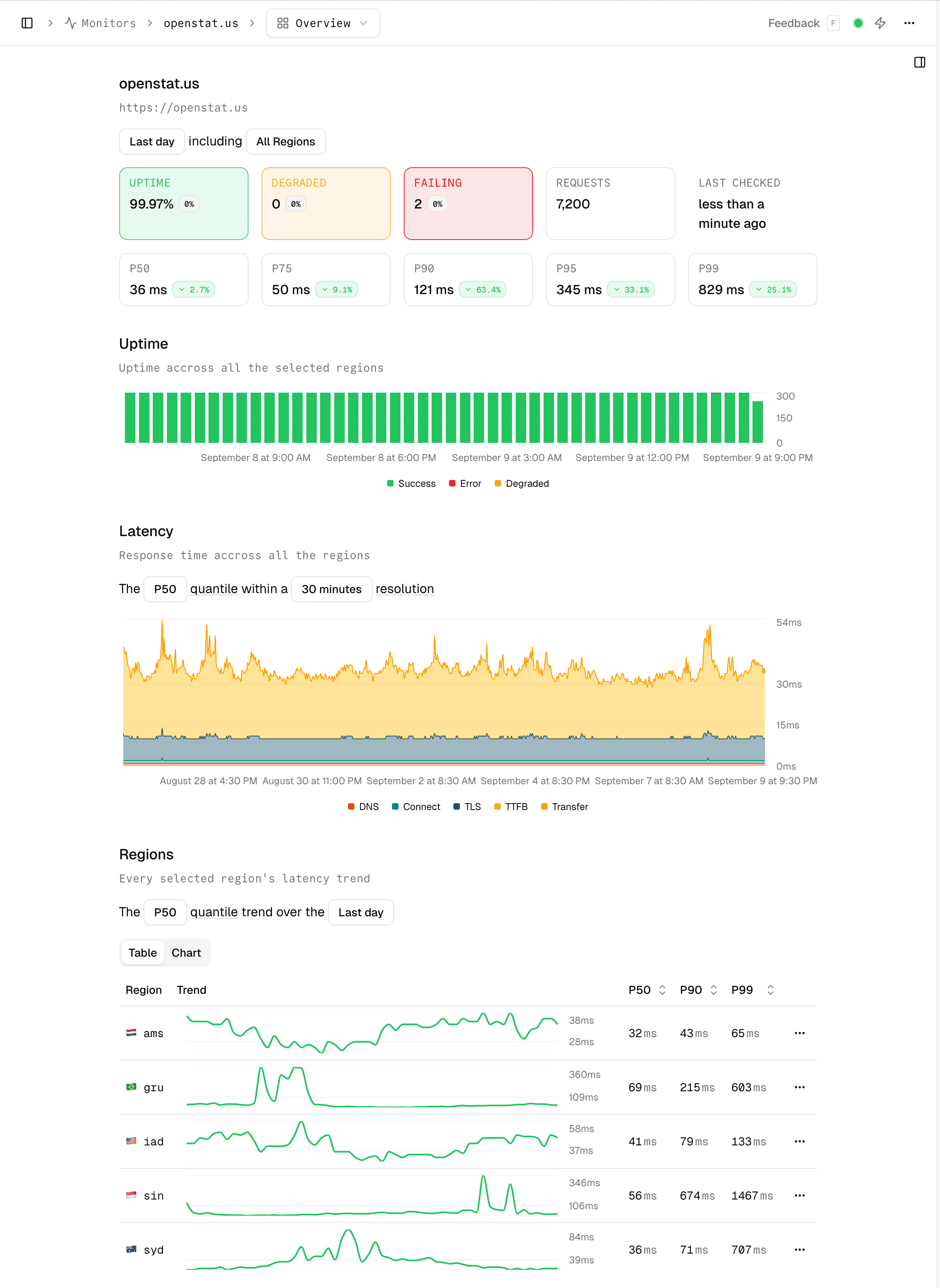
Monitor overview dashboard showing response time and status code charts
Checkpoint: After saving, you should see your monitor's overview page with response time and status code charts. If data appears within a few seconds, your monitor is running.
3. Customizing the HTTP Request
Your monitor doesn't just have to be a simple GET request. You can customize the HTTP request to simulate real-world traffic and test specific scenarios.
HTTP Method
Choose the appropriate HTTP method for your check. While GET is the default and most common for simple health checks, you can also select POST, HEAD, OPTIONS, PUT, PATCH, DELETE, or TRACE.
GET: Retrieve data from an endpoint. The most common choice for health checks.POST: Send data to an endpoint, for example, to test a form submission or API creation endpoint.HEAD: Same asGET, but without the response body. Useful for quickly checking if a resource exists.OPTIONS: Retrieve the supported HTTP methods for a resource.PUT: Update an existing resource.PATCH: Partially update an existing resource.DELETE: Delete a resource.TRACE: Echo the request back to the client.
Request Body
If you select the POST method, you can add a Request Body to your monitor's configuration. This is essential for testing API endpoints that require a JSON, form-encoded, or other data payload. Simply enter the data you want to send in the provided text area.
Custom Headers
You can add any number of custom HTTP headers to your request. This is particularly useful for:
- Authentication: Sending an Authorization token (e.g., a Bearer token) to test a protected endpoint.
- Content Type: Setting a
content-typeheader to specify a content type (e.g.,application/json). - Content Negotiation: Setting an Accept header to request a specific content type from the server (e.g.,
application/json). - Simulating Clients: Adding a User-Agent header to simulate traffic from a specific browser or device.
We've got your User-Agent covered!
openstatus automatically includes the "User-Agent": "openstatus/1.0" header in every request. This makes it easy to identify and filter out our monitoring traffic from your server logs or analytics.
Important Considerations
Monitoring Third-Party Endpoints
Note
If you're monitoring a URL you don't own (like google.com or a partner API), your requests might be blocked by firewalls or rate limiters (e.g., Cloudflare). This is a security measure on their end to prevent scraping or denial-of-service attacks.
What you've accomplished
Congratulations! You've successfully:
- ✅ Created your first uptime monitor
- ✅ Configured basic HTTP monitoring settings
- ✅ Learned about customizing requests with methods, headers, and body
- ✅ Understood key monitoring metrics (response time, status codes, timing breakdown)
What's next?
Now that you have a monitor running, you can:
- Create a Status Page - Share your service status publicly with users
Learn more
- Understanding Uptime Monitoring - Deep dive into monitoring concepts
- HTTP Monitor Reference - Complete technical specifications